
IDE Integration Checklist for AI Coding Tools
Integrate AI coding tools effectively into your IDE with this comprehensive checklist, ensuring a smooth, efficient coding experience.
Quick navigation
Setting up AI tools in your IDE can transform how you code, but proper integration is essential to avoid disruptions. Here’s what you need to know:
- Start with system readiness: Ensure a 64-bit processor, sufficient memory, updated IDE, and a stable internet connection.
- Prepare your project: Use clear file structures, consistent naming, and updated dependencies for better AI suggestions.
- Install and authenticate tools: Add plugins through your IDE's marketplace, use API keys or OAuth tokens, and test the connection.
- Fine-tune settings: Enable features like syntax highlighting and auto-save while allowing the AI to index your project for context.
- Test thoroughly: Validate integration by checking real-time suggestions and testing advanced features like code generation and refactoring.
Pro Tips:
- Always review AI-generated code for bugs and compliance.
- Maintain coding standards using style guides, linting tools, and automated formatting.
- Address common issues like plugin conflicts, indexing errors, or network problems to ensure smooth operation.
The AI Engineer Challenge, Step 1: AI Code Editor/IDE Set Up
Prerequisites for Integration
Laying the groundwork is crucial to avoid setup hiccups and to ensure your AI tool runs efficiently.
System Requirements
Make sure your system is equipped with a 64-bit processor, plenty of memory, robust processing power, and sufficient disk space - especially if you're working with large codebases.
Check that your operating system meets the AI tool's minimum requirements, as compatibility can differ between tools. Also, ensure your IDE is updated to a version that supports AI integration. A stable internet connection is a must since many AI tools rely on cloud-based models for setup and updates.
You'll also need to confirm that your IDE's extension marketplace is accessible and properly set up. Make sure your network allows third-party plugin installations, and verify that your IDE has enough memory allocated to handle larger projects without lag. Once these are in place, you can move on to configuring secure access for the tool.
Account Setup
Start by signing up with your work email and generating API keys or OAuth tokens through the developer portal. Store these credentials securely to avoid unauthorized access.
Take a moment to review the subscription plans available, as features often vary depending on the tier. Customize your user preferences by selecting your primary programming languages, coding styles, and any compliance requirements. For team environments, it’s also important to define user roles and permissions before integrating the tool.
Project Structure Readiness
A well-organized codebase can significantly boost the AI tool's accuracy. Use consistent naming conventions, structured directories, and clear file names. High-quality documentation - like well-commented code, detailed README files, and up-to-date API references - provides the context the AI tool needs to make useful recommendations.
Keep your dependencies current by reviewing files like package manifests or requirements lists. Solid version control practices - such as clear commit messages, well-structured branches, and regular merges - will help the tool better understand and support your workflow. Additionally, consider maintaining a project configuration file that outlines coding standards, linting rules, and formatting preferences. This ensures the AI-generated suggestions align with your team’s practices.
Step-by-Step Integration Checklist
With your environment set up and prerequisites verified, you’re ready to integrate your AI tool. Follow these steps to ensure a smooth setup and avoid common issues.
Installing the Plugin or Extension
To begin, open your IDE's extension marketplace or plugin manager. For Visual Studio Code, go to the Extensions view on the left sidebar. If you're using JetBrains IDEs like IntelliJ IDEA or PyCharm, navigate to File > Settings > Plugins.
Search for the AI coding tool you want to install. Make sure to select the official version by checking the publisher details and installation history. Click Install and wait for the process to complete. Most IDEs will enable the plugin automatically, though some may require you to restart the application.
Once installed, proceed to set up authentication for full functionality.
Configuring API Keys or Authentication Tokens
After installation, head to the extension’s settings to authenticate. Look for an API Key, OAuth Token, or Sign In option under the authentication section. If you're using an API key, copy it from your developer portal and paste it directly into the designated field.
For OAuth, click the sign-in button and follow the browser prompts to complete the process. The extension will securely store your credentials. Be cautious: never share these keys or accidentally include them in your version control system.
Test the connection using any available Verify or Test Connection feature. If successful, you’ll see a confirmation message. If there’s an error, double-check that your API key is active and that you haven’t exceeded the allowed usage.
Adjusting IDE Settings
To get the best results, configure your IDE for AI-assisted coding. Ensure that features like code completion, syntax highlighting, and real-time analysis are enabled. Also, confirm that your project files are properly indexed so the AI tool can access the complete context of your codebase.
You might also want to tweak editor settings, such as enabling auto-save or customizing the layout, to maintain a seamless workflow. For detailed instructions, refer to your IDE’s documentation.
Once your settings are in place, allow the tool to index your project before testing.
Performing Initial Context Indexing
After setup, the AI tool will analyze your project to understand its structure. This indexing process usually begins automatically once authentication is complete. You’ll likely see a progress bar or notification in your IDE’s status area.
The duration of this process depends on the size and complexity of your codebase. For larger projects, it may take some time - so avoid interrupting the indexing. If it seems to slow down, adjust file scanning priorities as recommended in your IDE’s guidelines.
Testing and Verifying Integration
To confirm the integration is working, open a source file in your main programming language and start typing a function or method. You should see AI-powered suggestions appear as you code, tailored to your project’s context.
For a more thorough test, write a descriptive comment about a function’s purpose and let the AI generate the implementation. Test it further by working on various types of code, such as data processing, API calls, or utility methods, to ensure the suggestions align with your project’s structure and classes.
Check that the tool provides timely and accurate suggestions. If there are delays or errors, revisit your authentication, indexing, and IDE settings. Additionally, try out advanced features like code explanations, refactoring recommendations, or documentation generation to ensure the integration is fully functional and optimized for your workflow.
Best Practices for AI-Assisted Coding Workflows
Once your AI coding tool is up and running, it’s time to fine-tune your workflow to maximize efficiency while keeping your code reliable and secure. Here are some strategies to help you maintain high standards in your AI-assisted development process.
Establishing Review Protocols
Always review AI-generated code before deploying it. Even the most advanced AI tools can introduce bugs or vulnerabilities. Establish a robust review process to ensure every AI-generated suggestion is thoroughly checked before it becomes part of your main codebase.
Start by examining AI-generated functions line by line. Pay extra attention to edge cases and error handling. AI tools often excel at generating code for standard scenarios but may overlook critical aspects like input validation, null checks, and exception handling.
Consider implementing a two-person review system: one developer works with the AI tool to generate code, while another reviews the output. This approach helps catch issues the original developer might miss due to familiarity with the AI’s suggestions. Keep a record of recurring issues in AI-generated code and review them as a team to refine your process.
Additionally, set up automated testing to run immediately after integrating AI-generated code. Unit tests, integration tests, and linting tools can catch problems that might slip through manual reviews. If the new code causes existing tests to fail, investigate whether the issue lies with the AI-generated code or if updates to the tests are needed.
Providing Complete Project Context
The quality of AI-generated code depends significantly on how much context the tool has about your project. Without full context, the AI may produce generic or misaligned code that requires extensive rework.
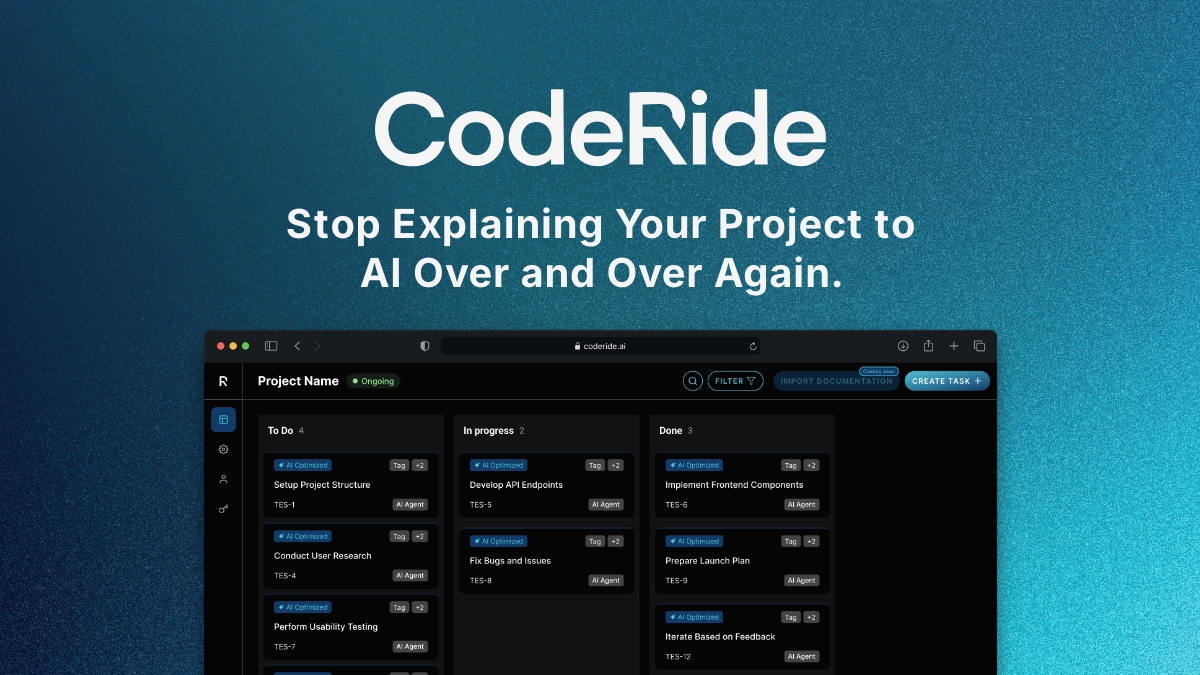
Tools like CodeRide address this by giving AI agents access to the entire codebase, including its structure, dependencies, and coding patterns. This allows the AI to generate suggestions that integrate smoothly into your existing project instead of creating isolated snippets that need heavy adaptation.
To improve context for your AI tool:
- Organize project files and documentation so the AI can access the full scope of your project’s architecture and purpose.
- Use descriptive comments when seeking AI assistance. For example, instead of writing "// process data", provide specifics like "// convert user input from CSV to JSON, validate email addresses, and exclude inactive users." Detailed instructions help the AI generate more precise and relevant suggestions.
- Regularly update your type definitions and interfaces. AI tools rely on this information to understand your data structures, making it easier for them to generate type-safe and compatible code.
Combining a well-organized project context with clear coding standards ensures the AI works effectively within your development workflow.
Maintaining Coding Standards
Even with a comprehensive project context, maintaining consistent coding standards is vital. AI tools might suggest code in varying styles, which can lead to inconsistencies across your codebase.
To address this, establish and enforce clear coding standards:
- Develop a style guide that outlines naming conventions, code organization, commenting practices, and architectural patterns for your team.
- Use automated formatting tools such as Prettier for JavaScript, Black for Python, or gofmt for Go, paired with pre-commit hooks to ensure uniformity.
- Set up linting rules that align with your team’s preferences using tools like ESLint, pylint, or golangci-lint.
If AI-generated code doesn’t align with your standards, refactor it to ensure long-term maintainability. Document specific patterns or architectural decisions that AI tools should follow, and share these guidelines with your team. This helps maintain a cohesive codebase, even as AI tools play a bigger role in your development process.
sbb-itb-4fc06a1
Troubleshooting and Optimization
After completing the integration checklist, it’s time to tackle any hiccups and fine-tune your AI tool for better performance. Even with a solid setup, AI coding tools can run into issues that might disrupt your workflow. Knowing how to address common problems and improve efficiency ensures your tools work seamlessly.
Resolving Common Integration Issues
Plugin conflicts are one of the most frequent problems you might face. When multiple extensions compete for the same resources in your IDE, you could encounter crashes, sluggish performance, or features that stop functioning. To pinpoint the issue, temporarily disable other extensions and test your AI tool. Check your IDE’s extension manager for compatibility warnings, as some conflicts may only show up during active use. If you identify a conflict, prioritize the extension that adds the most value to your work and disable the rest.
Authentication errors are another common headache, usually caused by expired or corrupted API tokens. These errors often show up as "unauthorized" messages or a complete lack of response from the AI tool. To fix this, remove the expired token and generate a new one through your provider’s dashboard. Keeping backup credentials in a secure password manager can save time when tokens need replacing.
Incomplete indexing can limit your AI’s ability to understand your project. You’ll notice this when the suggestions feel generic or fail to account for your project’s specific functions and variables. If this happens, try clearing your cache and restarting the IDE to refresh the indexing process.
Network connectivity issues can also disrupt your AI tool’s performance. Since these tools rely on cloud services, spotty internet or firewall restrictions can cause delays or failures. If you’re on a corporate network, work with your IT team to whitelist the required domains and ports for your AI tool. Make sure to document the endpoints your tool uses, as this information is often needed for proper configuration.
Once you’ve resolved these common issues, you can shift your focus to optimizing the tool for a smoother and more efficient workflow.
Optimizing Tool Performance
After ironing out the kinks, it’s time to enhance your AI tool’s performance for a more responsive coding experience.
Managing large codebases can be tricky, as extensive projects might overwhelm the AI, leading to slower suggestions or incomplete analysis. To counter this, break your project into smaller, logical modules and configure the tool to focus on specific sections. Use your IDE’s workspace features to limit the AI’s scope to active areas of the project. This approach not only speeds up the tool but also improves the relevance of its suggestions.
Resource allocation and response timeouts are key factors in keeping your AI tool running smoothly. Ensure your system has enough memory available - most tools use 2-4 GB of RAM during operation. Close unnecessary applications to free up resources, and adjust response timeout settings to match the complexity of your project.
Cache management is another area to watch. AI tools often store patterns and frequently used code snippets locally to reduce the need for repeated API calls. However, outdated cache data can lead to slower performance and irrelevant suggestions. Regularly clearing the cache keeps the tool running efficiently.
Fine-tune the suggestion frequency to suit your coding style. If you prefer to complete a thought before seeing suggestions, increase the delay between keystrokes and AI triggers. On the other hand, if you like instant feedback, reduce the delay - but be cautious, as overly aggressive settings can become distracting.
Network optimization is crucial for cloud-based AI services. A wired connection can help reduce latency, which is especially important if you notice response times lagging. Latency above 200 milliseconds can make the tool feel disconnected from your workflow, so minimizing it is essential for a smooth experience.
Finally, keep an eye on token usage to balance performance and cost. Many AI services charge based on token consumption or impose rate limits. Use descriptive variable names and comments to provide context, reducing the need for the AI to analyze large amounts of code. This not only lowers token usage but also makes your code more readable.
Monitor your API usage patterns through your provider’s dashboard. If you frequently hit rate limits during peak hours, consider spreading out AI-heavy tasks throughout the day. This simple adjustment can help you get more consistent performance while avoiding unnecessary interruptions.
US Localization and Compliance
Setting up your AI tools to follow US standards is crucial for aligning with local business practices. By ensuring your tools handle dates, currency, and numbers according to US conventions, you can avoid confusion and maintain consistency throughout your projects.
Localization for US Standards
When adapting to US formatting conventions, start with dates. Use the MM/DD/YYYY format for numeric representations (e.g., 08/31/2025 or 8/31/25) and the full formal style like "August 31, 2025" for written dates [1][2]. Additionally, some US applications require the ISO 8601 format (YYYY-MM-DD, e.g., 2025-08-31), so make sure your tools can support this as well [1].
For time, configure your tools to use the 12-hour clock with "a.m." and "p.m." suffixes (e.g., "3:45 p.m."), as this is standard in the US. When dealing with currency, default to USD, using the dollar sign ($) before the amount, such as $1,234.56. Numbers should follow the US style: commas for thousand separators and periods for decimals (e.g., 1,234.56).
Measurement units in the US rely on the imperial system, so your tools should default to feet, inches, pounds, and Fahrenheit. These settings can typically be adjusted through configuration files or your development environment by selecting "en-US" or "United States" as the locale.
Conclusion
Bringing AI coding tools into your IDE can completely reshape how you approach development. To make the most of these tools, it’s essential to follow a structured process and avoid skipping critical steps that might disrupt your workflow or compromise the quality of your code.
Always take the time to carefully review AI-generated code. This ensures you can catch potential errors, address security vulnerabilities, and maintain the scalability of your projects. A thorough review also helps uphold coding standards and avoids introducing bugs into your work.
Once your tools are set up, the real focus should shift to refining your workflow. Start by crafting precise prompts - this is what separates effective users from the rest. Be clear and detailed in your requests, offering enough context and using accurate terminology to guide the AI toward producing better results. Before generating code, outline your project’s structure and data flow. Breaking tasks into smaller, manageable pieces ensures you avoid the confusion that often comes with generating large, unorganized chunks of code.
AI tools are advancing quickly, so staying up to date is vital. Treat your interaction with the AI as a collaboration - refine your prompts, iterate on its suggestions, and continue to learn. By making these practices a regular part of your routine, you’ll set yourself up for long-term productivity and success.
FAQs
What are the essential steps for integrating AI coding tools into your IDE?
To make the most of AI coding tools within your IDE, start by confirming that the tool is compatible with your development environment. Look for any plugins or extensions that support the tool, and follow the installation instructions provided. Once installed, tweak the settings to match your workflow - this might include enabling features like context awareness or adjusting prompt settings to improve the accuracy of code suggestions.
After setup, test the integration by using it alongside your existing tools, such as version control systems or build pipelines. This helps ensure everything works smoothly together. It's also important to regularly review the AI-generated code to maintain high-quality standards and provide feedback that can improve future suggestions. Lastly, keep an eye out for software updates and evolving best practices to ensure you're getting the best performance and staying productive.
How can I improve the performance of AI coding tools when working with large codebases in my IDE?
When working with large codebases, you can improve the performance of AI coding tools by breaking your code into smaller, more manageable modules. Aim for files that are around 200–500 lines long. This approach helps the AI process and understand your code more effectively, resulting in quicker suggestions and more accurate outputs.
Another key tip is to organize your codebase with a clear and logical architecture. A well-structured layout allows the AI to focus on the most relevant parts of your code, cutting down on unnecessary processing. By adopting these practices, you can make AI tools work more efficiently and seamlessly in large-scale projects.
What are the best practices for maintaining coding standards when using AI-generated code?
To keep your coding standards top-notch when working with AI-generated code, it's crucial to thoroughly review the output. Make sure it matches your organization's coding guidelines and adheres to established best practices. Automated tools can be a big help here, spotting common issues and ensuring a consistent style across your project.
You should also take the time to understand the AI's suggestions, particularly when it comes to API usage, and adjust the code to fit your specific needs. Combining regular peer reviews with AI-assisted checks is a great way to keep your code clear, efficient, and high quality.
Ready to transform your AI development workflow?
Experience seamless AI development with CodeRide. Eliminate context reset and build better software faster.
Share this article